Android is the most popular platform for Roblox players worldwide, and it is also one of the best platforms to run Delta Executor. Thanks to Android's open file system and sideloading capabilities, installing a script executor on your phone or tablet is straightforward once you know the correct steps. This guide will take you through the entire process from start to finish, covering system requirements, the download procedure, installation, permission configuration, running your first script, and troubleshooting common problems along the way.
If you are completely new to Delta Executor and want a broader overview of what the tool does and why people use it, start with our complete beginner's guide to Delta Executor. Otherwise, if you already understand the basics and just want to get it running on your Android device, you are in the right place. Let us walk through every step.
System Requirements for Delta Executor on Android
Before downloading anything, make sure your Android device meets the minimum requirements for running Delta Executor smoothly. The executor is not particularly resource-heavy, but it does need a baseline level of hardware and software to function properly. Running it on a device that falls below these requirements may result in crashes, lag, or failed script executions.
The minimum Android version is Android 7.0 (Nougat). This covers the vast majority of Android devices currently in use, but if you are running something older, you will need to update your operating system or use a different device. You can check your Android version by going to Settings, then About Phone, then Software Information. If your device shows Android 7.0 or higher, you are good to proceed.
For hardware, Delta Executor requires at least 2 GB of RAM and a processor with ARM64 architecture, which includes nearly every smartphone released after 2017. In practice, devices with 3 GB or more of RAM and a mid-range processor like a Snapdragon 600 series or equivalent provide the best experience. If your phone can run Roblox without significant lag, it can almost certainly handle Delta Executor as well.
You will also need approximately 150 MB of free storage space for the Delta Executor APK and its associated data files. This does not include the space used by scripts you download or save later, so having at least 300 MB of free space is a comfortable buffer. Additionally, you need an active internet connection for the initial download, key verification, and script hub access. A stable Wi-Fi connection is recommended for the download to avoid interruptions that could corrupt the APK file.
Finally, make sure you have the latest version of Roblox installed from the Google Play Store. Delta Executor is designed to work with the current Roblox build, and using an outdated version of Roblox can cause compatibility issues. Update Roblox before proceeding with the Delta Executor installation.
Downloading Delta Executor APK Safely
The single most important step in this entire process is ensuring you download the genuine Delta Executor APK from the official source. The internet is full of fake download pages, phishing sites, and modified APKs that bundle malware with the executor. Using an unofficial source puts your device and personal data at serious risk. Always start from the official Delta Executor Android download page on the deltaexploits.vip website.
Once you are on the download page, tap the download button for the latest Android version. Your browser will begin downloading the APK file. Depending on your internet speed, this should take between 30 seconds and a few minutes. Some browsers may display a warning that the file could be harmful. This is a standard Android security prompt for any APK file downloaded outside the Play Store and does not indicate that the file is actually dangerous. Tap "Download anyway" or the equivalent option in your browser to proceed.
After the download completes, do not open the APK immediately. Instead, take a moment to verify the file. Check the file size, which should match the size listed on the official download page. If the file is significantly smaller or larger than expected, it may be incomplete or tampered with. You can find the downloaded file in your browser's download folder or in the Files app under the Downloads section.
A common mistake is downloading Delta Executor from YouTube video descriptions, random Discord servers, or third-party APK hosting sites. Even if these sources claim to offer the same file, there is no way to verify that the APK has not been modified. Stick to the official website, and if you are ever unsure whether you are on the right site, check the URL carefully. The legitimate domain is deltaexploits.vip, and you should see HTTPS in the address bar.
Installing the APK and Configuring Permissions
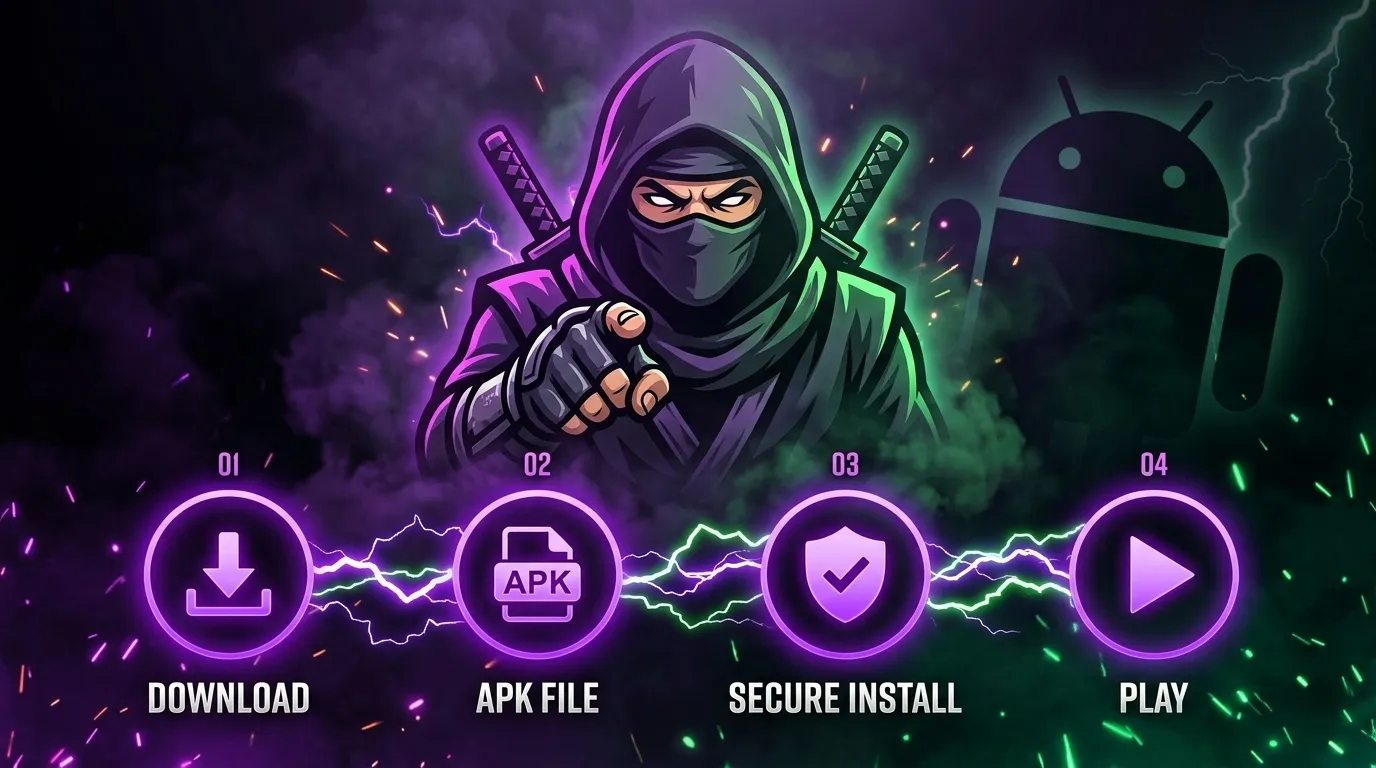
With the APK downloaded, you now need to enable installation from unknown sources on your Android device. By default, Android blocks the installation of apps that do not come from the Google Play Store. This is a security feature, not a sign that the app is unsafe. You are simply telling Android that you trust this specific source.
The process for enabling unknown sources varies slightly depending on your Android version and device manufacturer. On Android 8.0 and above, the permission is granted per-app rather than system-wide. When you tap the APK file to install it, Android will display a prompt saying "Your phone is not allowed to install unknown apps from this source." Tap "Settings" on that prompt, and you will be taken to a toggle where you can allow your browser (or file manager) to install apps. Enable the toggle and go back to the installation.
On older Android versions (7.x), go to Settings, then Security, and enable the "Unknown sources" toggle. This allows APK installation from any source, so remember to disable it after installing Delta Executor if you want to maintain the default security posture.
Once the permission is enabled, tap the APK file again to begin installation. Android will show you a confirmation screen with the app name, size, and the permissions it requests. Review these permissions. Delta Executor typically requests access to storage (for saving scripts and configuration files), internet access (for the script hub and key system), and overlay permissions (for the floating executor interface that appears over Roblox). These permissions are standard for this type of application.
Tap Install and wait for the process to complete. Installation usually takes less than 30 seconds. When you see the "App installed" confirmation, tap "Open" to launch Delta Executor for the first time, or tap "Done" and find the app in your app drawer. If the installation fails with an error about parsing the package, the APK may be corrupted or incomplete. Delete it and download a fresh copy from the official download page.
Completing the Key Verification Process
When you open Delta Executor for the first time, you will be greeted by the key verification screen. The key system is a required step that gates access to the executor's full functionality. Understanding what it is and how it works will save you frustration and ensure a smooth experience going forward.
The key system works on a 24-hour cycle. Each day, you generate a new key by completing a brief verification process within the app. This process typically involves visiting a link, waiting through a short timer, and copying the generated key back into Delta Executor. The entire process takes about two to three minutes. Once verified, the key remains active for 24 hours, during which you have unrestricted access to all of Delta Executor's features.
To complete the verification, tap the "Get Key" button on the main screen. This opens your default browser and takes you through the verification steps. Follow the on-screen instructions carefully. You may encounter intermediate pages with ads or timers. Wait for each timer to expire and proceed through each step until you reach the page that displays your key. The key is a string of characters that you need to copy.
After copying the key, switch back to Delta Executor and paste it into the key input field. Tap "Verify" or "Submit," and the executor will validate your key. If the key is accepted, the main interface will unlock, and you will see the script editor, script hub, and settings options. If the key is rejected, make sure you copied the entire string without any extra spaces, and that you did not skip any steps in the verification process.
A few tips for smoother key verification: use a modern browser like Chrome, disable aggressive ad blockers that might interfere with the verification pages, and make sure your internet connection is stable throughout the process. If you consistently have trouble with the key system, check the official community channels for known issues or alternative verification methods.
Running Your First Script on Android
With Delta Executor installed and verified, you are ready to run your first script. This is the moment everything comes together. The process is simple, and within a few minutes you will see a script in action inside a Roblox game.
Start by launching Roblox from your app drawer and joining any game. Popular games with well-supported scripts include Blox Fruits, Brookhaven, Pet Simulator X, and Arsenal. For your first test, choose a game you are familiar with so you can easily recognize when the script takes effect. Once you are in the game and your character has loaded, minimize Roblox. Do not close it, just press the home button or use gesture navigation to go back to your home screen.
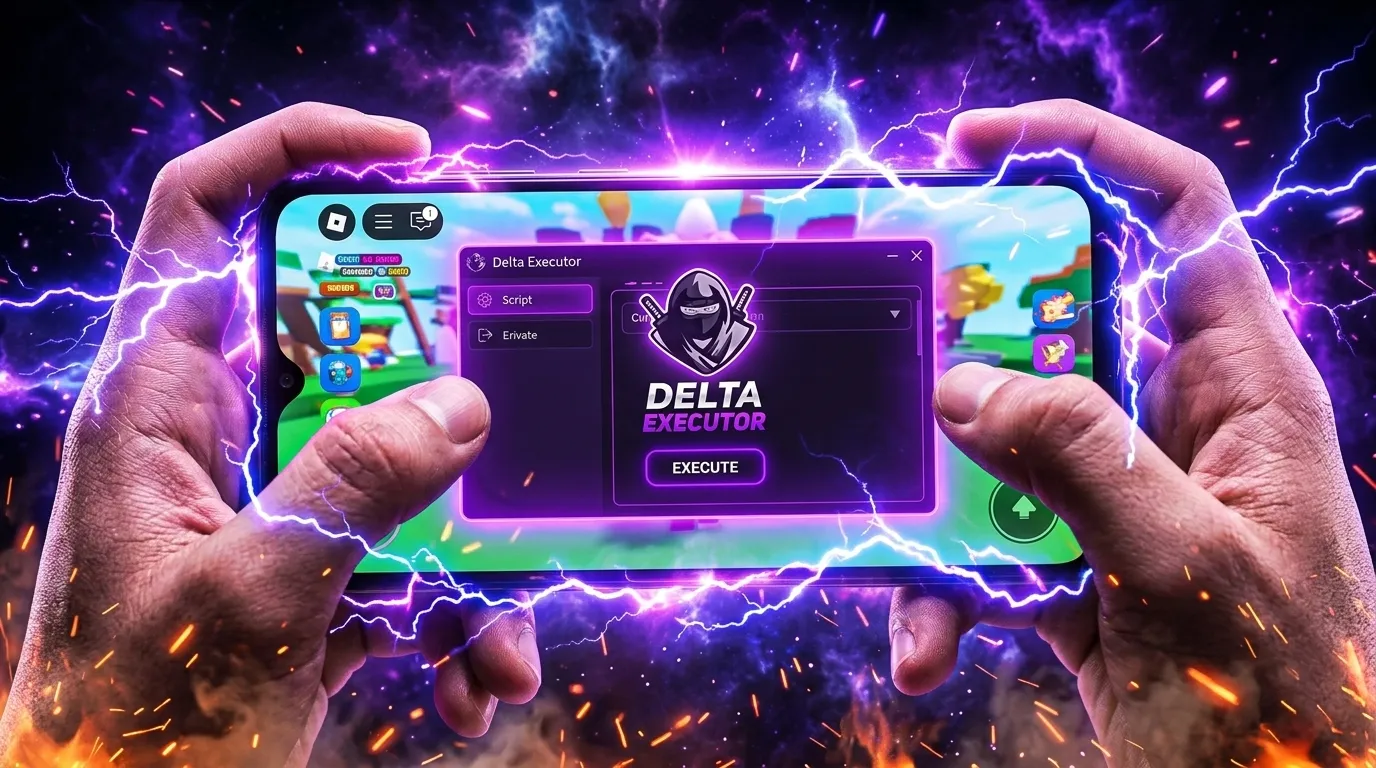
Now open Delta Executor. If auto-attach is enabled, the executor will detect the running Roblox session automatically. You will see a status indicator showing "Attached" or a similar confirmation. If auto-attach is not enabled, tap the attach button manually. The executor needs to connect to the Roblox process before it can execute any scripts.
Navigate to the script hub by tapping the hub icon in the bottom navigation bar. Browse the available scripts, which are organized by game. Find a script for the game you are currently playing, tap on it to load it into the editor, and then tap the Execute button. Switch back to Roblox, and you should see the script's effects in the game. This could be anything from a new GUI menu appearing on your screen to automatic gameplay features activating.
If you prefer to use a script from an external source, you can paste it directly into the editor. Tap the editor tab, long-press in the text area, select "Paste," and then tap Execute. Make sure you trust the source of any script you run, as malicious scripts can potentially affect your game account or device performance. For a curated list of safe and tested scripts, see our guide on the best Roblox scripts for Delta Executor.
Optimizing Performance on Android
Running a script executor alongside Roblox means your phone is handling two demanding processes simultaneously. Optimizing your device for this workload can significantly improve stability and reduce lag. Here are practical adjustments that make a real difference.
Close background apps before launching Roblox and Delta Executor. Every app running in the background consumes RAM and CPU cycles. Open your recent apps view and clear everything except the apps you need. On devices with 3 GB of RAM or less, this step is especially important because Android may kill Delta Executor or Roblox in the background to free memory, which breaks the connection between them.
Lower Roblox graphics settings to reduce the GPU load. Open Roblox, go to Settings, and set the graphics quality to the lowest level that you find acceptable. This frees up processing power for Delta Executor's script execution. You can also disable in-game shadows and reduce the render distance if the game allows it. The visual difference is often minimal, but the performance improvement can be substantial.
Enable developer options and limit background processes if you are comfortable with advanced settings. Go to Settings, About Phone, and tap "Build Number" seven times to unlock Developer Options. Then go to Developer Options and set "Background process limit" to "At most 2 processes." This prevents Android from allocating resources to background services that you do not need while scripting.
If your device has a game mode or performance mode, enable it. Samsung's Game Booster, OnePlus's Fnatic Mode, and similar features from other manufacturers optimize CPU and GPU allocation for demanding applications. These modes also typically suppress notifications and prevent accidental interruptions, which is useful during scripting sessions.
Battery optimization can also interfere with Delta Executor. Go to Settings, Battery, and exclude both Roblox and Delta Executor from battery optimization. This prevents Android from throttling their performance or killing them in the background to save power. If you are running scripts for extended periods, keeping your device plugged in eliminates any battery-related throttling entirely.
Troubleshooting Common Android Installation Issues
Even with a straightforward installation process, things can occasionally go wrong. Here are the most common issues Android users encounter and how to resolve them quickly. If your problem is not covered here, our comprehensive Delta Executor troubleshooting guide covers additional scenarios.
"App not installed" error
This error usually means the APK file is corrupted or incompatible with your device. Delete the downloaded APK and download it again from the official Android download page. If the error persists, check that you have enough free storage space (at least 300 MB) and that you do not have an older version of Delta Executor already installed. Uninstall any previous version before attempting a fresh installation.
"Parse error" during installation
A parse error indicates that your Android version may be too old to install the APK, or the file is incomplete. Verify that your device runs Android 7.0 or higher. If your Android version is compatible, the download was likely interrupted. Clear your browser cache, restart the download, and wait for it to complete fully before attempting installation.
Delta Executor does not detect Roblox
If the executor cannot find the running Roblox process, try these steps in order. First, make sure Roblox is actually running and you are in a game, not sitting at the Roblox home screen. Second, force-close Delta Executor and reopen it. Third, check that you have granted overlay permissions to Delta Executor in your device settings (Settings, Apps, Delta Executor, Display over other apps). Fourth, restart your device and try the entire process again.
Scripts execute but nothing happens in-game
This typically means the script is outdated or incompatible with the current version of the game. Games on Roblox update frequently, and scripts that worked last week may not work today. Check the script hub for updated versions, or look for alternative scripts for the same game. You can also check the console output in Delta Executor for error messages that explain why the script failed.
Key verification fails repeatedly
If you cannot get past the key verification step, try switching to a different browser for the verification process. Chrome typically works best. Make sure you are not using a VPN during verification, as some VPN IP ranges are blocked. Clear your browser cookies and cache, then try the verification again from the beginning. If the problem continues, the key system may be temporarily down for maintenance. Wait an hour and try again.
Tips for Getting the Most Out of Delta Executor on Android
Once you have Delta Executor up and running, these tips will help you use it more effectively and get better results from your scripting sessions.
Save your favorite scripts locally. While the script hub is convenient, having scripts saved on your device means you can access them even when the hub is slow or temporarily unavailable. Use the file manager within Delta Executor to create folders for different games, and save scripts you use regularly. This also lets you customize scripts and keep your modified versions without losing them to hub updates.
Keep Delta Executor updated. When a new version is released, update as soon as possible. New versions include compatibility fixes for the latest Roblox updates, performance improvements, and sometimes new features. Running an outdated version increases the risk of detection and may cause scripts to fail. The app will notify you when an update is available.
Join the community. The Delta Executor community on Discord and other platforms is a valuable resource for finding new scripts, getting help with issues, and learning advanced techniques. Experienced users share custom scripts, optimization tips, and early warnings about Roblox updates that might affect executor functionality. Community knowledge accelerates your learning curve significantly.
Learn basic Lua scripting. Relying entirely on pre-made scripts limits what you can do. Even a basic understanding of Lua syntax lets you modify existing scripts to suit your needs, combine features from multiple scripts, and eventually write your own. The Roblox Developer Hub has excellent documentation on the Lua API used in Roblox, and it is freely available to everyone.
Use scripts responsibly. Running highly visible or disruptive scripts in public servers increases the chance of reports from other players, which can lead to account moderation. Consider using a secondary account for testing new scripts, and keep your scripting activities subtle in populated servers. Responsible use protects your account and contributes to a better environment for the broader Roblox community.
Download Delta Executor for Android
Get the latest version and start scripting on your Android device today.
Download for Android